The Provider Enrollment Gateway can be used as a secure mechanism for providers and suppliers to:
Upload paper Medicare enrollment applications
Respond to development requests for paper applications
View decision letters for paper applications previously submitted through the gateway
Check the status of a paper application previously submitted through the gateway
It also provides an alternative for providers and suppliers who are unable to use PECOS or those that have automated processes for pre-populating paper enrollment applications from their credentialing databases.
The gateway accepts only the following paper enrollment application types in portable document format (PDF):
Medicare enrollment application - Institutional providers (
CMS 855A)
Medicare enrollment application - Clinics/Group practices and other suppliers (
CMS 855B)
Medicare enrollment application - Physicians and non-physician practitioners (
CMS 855I) Medicare enrollment application - Ordering and certifying physicians and other eligible professionals (
CMS 855O) Medicare enrollment application - Medicare Diabetes Prevention Program (MDPP) suppliers (
CMS-20134) Medicare enrollment application - Medicare participation agreement (
CMS-460)The gateway will reject the following stand-alone submissions that are not submitted as part of the PDF enrollment application package, which include but are not limited to:
Electronic data interchange applications
Opt-out affidavits
Appeals (corrective action plans (CAPs), reconsiderations, or rebuttals)
Miscellaneous correspondence
Please continue to send stand-alone non-enrollment applications via mail, fax, or email, as applicable.
To submit your application(s) successfully, gather all required documents to enroll for your provider or supplier type before you begin.
1. Download the appropriate enrollment application(s).
2. Complete the application(s) electronically and save them to your computer.
3. Upload or scan all required supporting documentation to your computer.
Note: File names can have letters, numbers, underscore or hyphen only. If another character (such as a comma is used), you will receive an error message stating like the below when uploading to the gateway.

Supporting documentation may include:
Licenses, certifications and registrations required by Medicare or state law
Federal, state, and/or local (city/county) business licenses, certifications and/or registrations required to operate a health care facility
IRS documentation confirming your Tax Identification Number (TIN) and legal business name (e.g., IRS CP-575, LTR 147-C)
IRS determination letter, if registered as non-profit entity.
IRS documentation confirming a limited liability company is classified as a disregarded entity. (e.g., Form 8832).
Bills of sale or sales agreements (required for change of ownership (CHOW), acquisition/mergers, and consolidations).
Home health agencies: documentation showing you meet capitalization requirements
Independent clinical laboratories: Documentation confirming required state licenses or certifications for the laboratory director or non physician personnel.
Bank offset waiver (of applicable): A written statement from your bank confirming it has agreed to waive its right to offset Medicare payments if you have a lending relationship and Medicare payments are sent to the bank.
Adverse legal actions: Copies of all documentation related to adverse legal actions, including notices, resolutions, or reinstatement letters.
Federally qualified health centers (FQHCs): A copy of the Health Resources and Services Administration (HRSA) Notice of Grant Award, if used to qualify for FQHC status.
Medicare participation agreement (CMS 460): A completed CMS 460 form. This is required for initial enrollments or reactivations only if you choose to participate in Medicare
Government and tribal entities: A signed attestation confirming eligibility.
Air ambulance suppliers: A copy of the FAA Part 135 certificate.
Independent Diagnostic Testing Facilities (IDTFs):
A copy of your comprehensive liability insurance policy
Documentation verifying supervisory physician qualifications and required state licenses or certifications for non physician personnel
Opioid Treatment Programs (OTPs):
A copy of the CMS 1561 Health Insurance Benefit Agreement
A copy of the program’s operating certificate
4. Save the application(s) and supporting documentation as a PDF file to upload. All documents must be uploaded to the gateway in PDF format. File size cannot exceed 50 MB for a single file, or 200 MB total for all files being uploaded.
5. Have your NPI and a valid email address ready, as a one-time access code will be sent to your email to enter the gateway. The one-time access code will expire after 15 minutes upon receipt of the email.
The Provider Enrollment Gateway can be accessed one of two ways:
1. Gateway link (
JH) (
JL)
2.
Novitas website, select jurisdiction H (JH) or jurisdiction L (JL), then select “Provider Enrollment” from the left navigation, and click Enrollment Gateway.
The gateway home screen will look like this:
You must accept the disclaimer in order to access the gateway.
Once you have accepted the disclaimer, you will reach the entry page for the gateway. Please have your NPI and a valid email address ready as you will be required to enter them in order to access the gateway.
The entry page will look like this:
Enter your NPI, select the state in which you are enrolling from the drop-down menu, enter your email address, and select the email one-time access code button.
You will receive a one-time six-digit access code to the email address that you entered.
Please note that this code is only to be used for this transaction and is only available for 15 minutes. Once it has been used, it cannot be used again.
The email subject line will be: Urgent: Provider Enrollment Gateway Access. The email will include the six-digit access code, which you will enter in the newly populated one-time access code field. Click the “continue” button.
The NPI that you choose to log in will be required each time you want to check on that submission, submit returned development, or view a decision letter. The NPI entered for the initial submission of the application(s) is tied to the submission identification (ID).
Example:
You are submitting a Clinics/Group Practices and Other Suppliers (CMS-855B) application for a group, and 4 Physicians and Non-Physician Practitioners (CMS-855I) applications for reassignment. You may log into the gateway only one time to upload all 5 applications under one submission using one designated NPI.
If you enter the NPI incorrectly the first time, you may not be able to access any information for that application submission, so it is important that the NPI entered for the initial submission is correct. You will not be able to check the status of another NPI’s application submission since the NPI is linked to the unique submission ID and DCN.
Examples:
An application was submitted for a provider using NPI 1234567890 and submission ID 1564 was assigned. You want to check on an application that was submitted for NPI 1569845651 with submission ID 1779. You will not be able to log into the gateway using NPI 1234567890 and the submission ID for NPI 1569845651 to check on the application status for NPI 1569845651.
You will receive the following error:
A Clinics/Group Practices and Other Suppliers (CMS-855B) and four Physicians and Non-Physician Practitioners (CMS-855I) applications were submitted using NPI 1659845100 and given submission ID 1222. You later tried to check the status of the applications with one of the individual NPIs and submission ID 1779, the status will not be able to be shown since the NPI and submission ID do not match. The same error message above will be provided.
After obtaining entry into the gateway, you will need to select the application type and reason. The Indian Health Services (IHS) box will only appear if you selected the enrollment state as TEXAS when you entered the Gateway. This is applicable to JH only and should only be marked if enrolling in Medicare as an Indian Health Services provider.
Once you have selected your application type and reason, drag and drop the PDF files you want to upload to the ‘File Upload’ box or click within the ‘File Upload’ box to then select the files from your computer to upload.
Click the “Submit” button once all appropriate documents for this application submission have been uploaded.
Special note for revalidations: You must have your revalidation DCN available in order to upload an application in response to a revalidation request. Once you have chosen the reason of revalidation, an additional line will populate to request the revalidation DCN that has already been created for you.
If an incorrect revalidation DCN is entered:
The gateway will display each document uploaded for the submission:
Click the "Submit" button once the appropriate supporting document has been uploaded.
You will be able to delete the documents prior to submission only. Once you have selected the “submit” button and the applications and documents have been submitted, the applications or supporting documents cannot be rescinded.
When the application(s) and supporting document(s) have been submitted, you will receive the submission ID and NPI used to submit the application via email confirming the submission and the submission ID will be displayed on the submission page:
Important: You must retain your submission ID and NPI to check the status or submit additional documentation for the application. You will receive a separate submission ID for each application submission.
Please allow a few days for us to receive your application and assign it to a provider enrollment representative for processing. You will receive a DCN for each separate application type submitted immediately after the application(s) have been submitted. The DCN can be obtained by checking your application status.
You can check the status of an application one of two ways:
1. Immediately after submitting an application to obtain the DCN.
2. Logging into the gateway after an application has already been submitted.
Checking the application status immediately after submitting an application to obtain the DCN
1. To obtain the DCN immediately after submitting an application, click on the “Check Application Status” tab and then enter the submission ID you were assigned:
2. You will receive information regarding the DCN, including the submitted application type, reason for application, DCN, and status of the application:
Note: The application status is subject to change based on the processing of your application.
3. While checking on the status, you will be able to either submit another paper application or submit a development response. Please note that you are submitting a paper application or development response for the NPI that you chose to use when initially signing in. If you are enrolling multiple providers, log into the gateway using each individual NPI.
Checking the application status by logging into the gateway after an application has already been submitted
1. Log into the gateway using the same NPI that you used to submit the application and select the “check application status” tab. Please note that the email address you choose to use is not required to be the same for all actions. You will receive another one-time code to the email address entered and enter it in the one-time access code field.
2. Enter the submission ID that you were assigned, and select submit:
3. You will receive information regarding the DCN, including the submitted application type, reason for application, DCN, and status of the application:
Note: You will not receive a notification email when the status of your application changes since the gateway does not store your email address.
1. Log into the gateway using the same NPI that you used to submit the application and select the “Submit development response” tab. Please note that the email address you choose to use is not required to be the same for all actions. You will receive another one-time code to the email address entered and enter it in the one-time access code field.
2. Enter the DCN that you have been assigned; please refer to the DCN indicated on the development letter that you received. The gateway will confirm the DCN and NPI combination after the DCN has been entered. If the combination is valid, you will receive a file upload option:
If the DCN and NPI combination do not match, you will receive this error:
3. Drag and drop the PDF files you want to upload to the ‘File Upload’ box or click within the ‘File Upload’ box to then select the files from your computer to upload. You will be able to delete the documents prior to submission only using the trash can icon. Once the desired documents are uploaded to submit for development, select the ‘submit’ button.
4. Once you have selected the “submit” button and the applications and documents have been submitted, they cannot be rescinded.
The gateway application will make certain decision letters available after they have been issued. As we continue to develop the program, functionality of the gateway, more decision letters will be available for review via the gateway.
1. Log into the gateway using the same NPI that you used to submit the application and select the “check application status” tab. Please note that the email address you choose to use is not required to be the same for all actions. You will receive another one-time code to the email address entered and enter it in the one-time access code field.
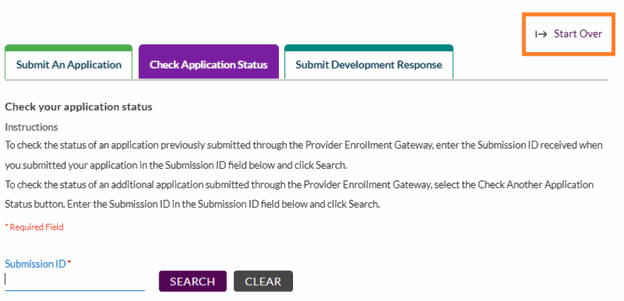
2. Enter the submission ID that you were assigned, and select search:
3. You will receive information regarding the DCN, including the submitted application type, reason for application, DCN, status of the application, and if a decision letter is available, a collapsed menu icon will be displayed. Select the icon to view available decision letters in PDF format.
4. Click on the PDF icon, and the letter will be displayed in a new browser tab, where you will be able to view, save, or print the decision letter.
Note: You will not receive a notification email when a decision letter has been issued through the gateway since the gateway does not store your email address.
The gateway does not store your information, so you may simply close your browser and your current gateway session will be complete. If you wish to start your gateway session over to perform another action or resubmit an application for a different provider or supplier, you may select the "Start Over" option to be directed back to the main page with the disclaimer.
1. How do I check the status of my application that has already been submitted?
You may log into the gateway using your NPI and submission ID and select check status.
2. Who do I contact if I have questions?
You may reach out to our provider enrollment customer service for your designated area via phone; please refer to resources and contacts.
3. Will submitting an application through the gateway speed up my processing time?
The gateway was designed to increase efficiency with entering a paper application in our processing system by avoiding processing times with the U.S. postal service. Novitas strives to screen, validate, and process our applications with the CMS designated timeframes. PECOS web applications have shorter designated processing timeframes than paper applications.
4. What are the advantages for submitting paper applications through the gateway?
The gateway was designed to increase efficiency with entering a paper application in our processing system by avoiding processing times with the U.S. postal service. The gateway is a free service available for our providers and suppliers.
5. How do I know if I’m up for revalidation?
Navigate to the
CMS Medicare Revalidation List and enter your organization name, first name, last name or NPI. Your information will be displayed by name, due date, state, specialty, and NPI. You may have also received a letter requesting you to revalidate up to three months prior to your revalidation due date. The DCN assigned to you to revalidate will be referenced on that letter and required to upload your revalidation application. If you do not have a copy of the revalidation request letter but your revalidation is due, you may reach out to our provider enrollment customer service line to request the DCN.
6. How do I know what CMS form is appropriate for my submission?
Please refer to the application types and reasons above. There are additional FAQs on our tutorials & help page (
JH)(
JL).
7. How do I submit documentation that is not a CMS form accepted by the gateway?
You may submit additional documentation or forms (i.e. appeal or letterhead request) via mail to:
JH regular mail:
Novitas Solutions, Inc.
Provider Enrollment Services
P.O. Box 3095
Mechanicsburg, PA 17055-1813
JH IHS regular mail:
Novitas Solutions, Inc.
Provider Enrollment Services
P.O. Box 3115
Mechanicsburg, PA 17055-1858
JH Appeals (CAPs, reconsiderations, rebuttals)
Novitas Solutions, Inc.
Provider Enrollment Services
P.O. Box 3096
Mechanicsburg, PA 17055-1814
JL regular mail:
Novitas Solutions, Inc.
Provider Enrollment Services
P.O. Box 3157
Mechanicsburg, PA 17055-1836
JL Appeals (CAPs, reconsiderations, rebuttals)
Novitas Solutions, Inc.
Provider Enrollment Services
P.O. Box 3326
Mechanicsburg, PA 17055-1839
Overnight mail:
Novitas Solutions, Inc.
Provider Enrollment Services
2020 Technology Parkway, Suite 100
Mechanicsburg PA 17050
Or fax to:
1-877-439-5479
8. Can I use the gateway with multiple different email addresses?
Yes, the email address provided to the gateway is simply to provide you with the one-time access code to enter the gateway. The email address is not tied to your NPI, submission ID, or DCN.
If you have questions about…. |
Website or phone number |
Novitas Solution’s website |
Website: www.novitas-solutions.com |
Provider enrollment applications, requests, or general provider enrollment information |
JL - (PA, NJ, MD, DCMA, DE): 877-235-8073 JH - (AR, CO, LA, MS, NM, OK, TX): 855-252-8782 Option 4: Provider Enrollment Services |
Provider customer service department |
JL - (PA, NJ, MD, DCMA, DE): 877-235-8073 JH - (AR, CO, LA, MS, NM, OK, TX): 855-252-8782 Options 1, 2, 3, or 5 |
Provider Enrollment Gateway |
Jurisdiction H
Jurisdiction L |
National plan and provider enumeration system |
Website: https://nppes.cms.hhs.gov Phone: 800-465-3203 TTY: 800-692-2326 |
Revalidations |
Website |
Medicare revalidation lookup tool |
Website |
Revalidate your enrollment information |
Website |
Medicare application fee |
Website |
Medicare program integrity manual chapter 10 |
Website |
Medicare provider-supplier enrollment |
Website |
Office of inspector general |
Website |
 Loading...


